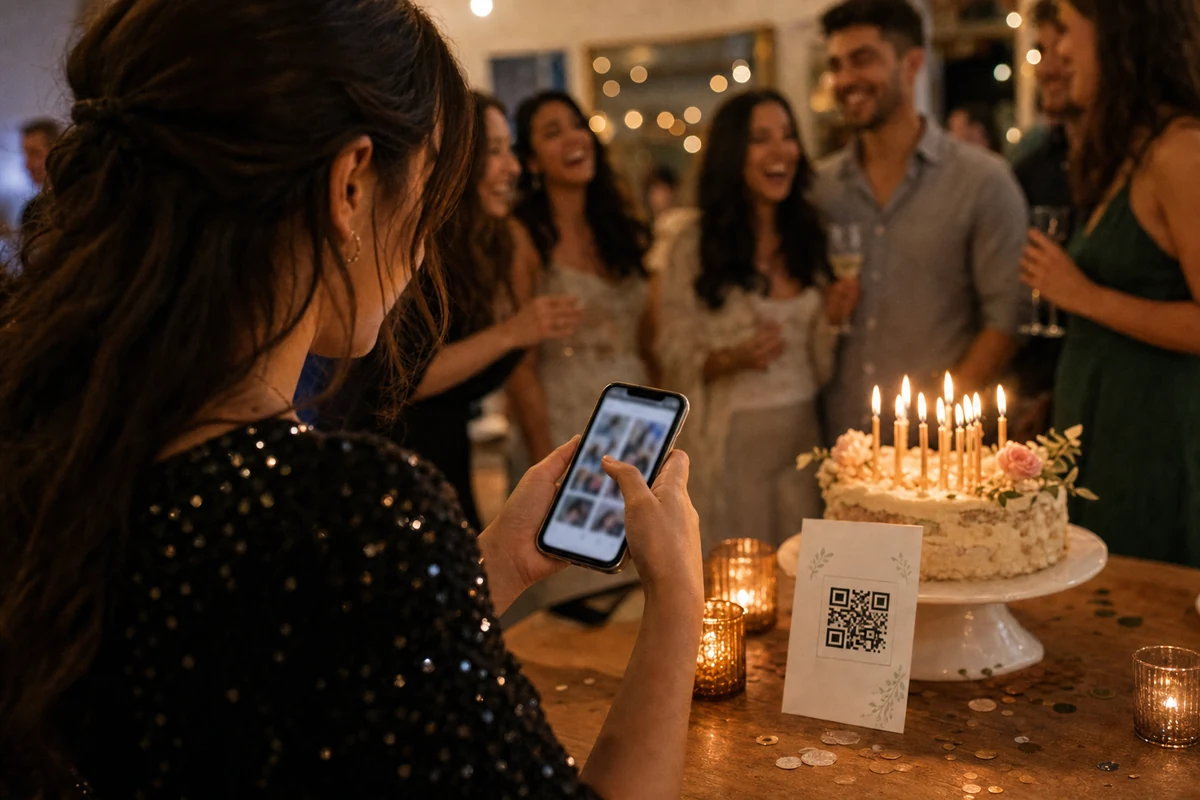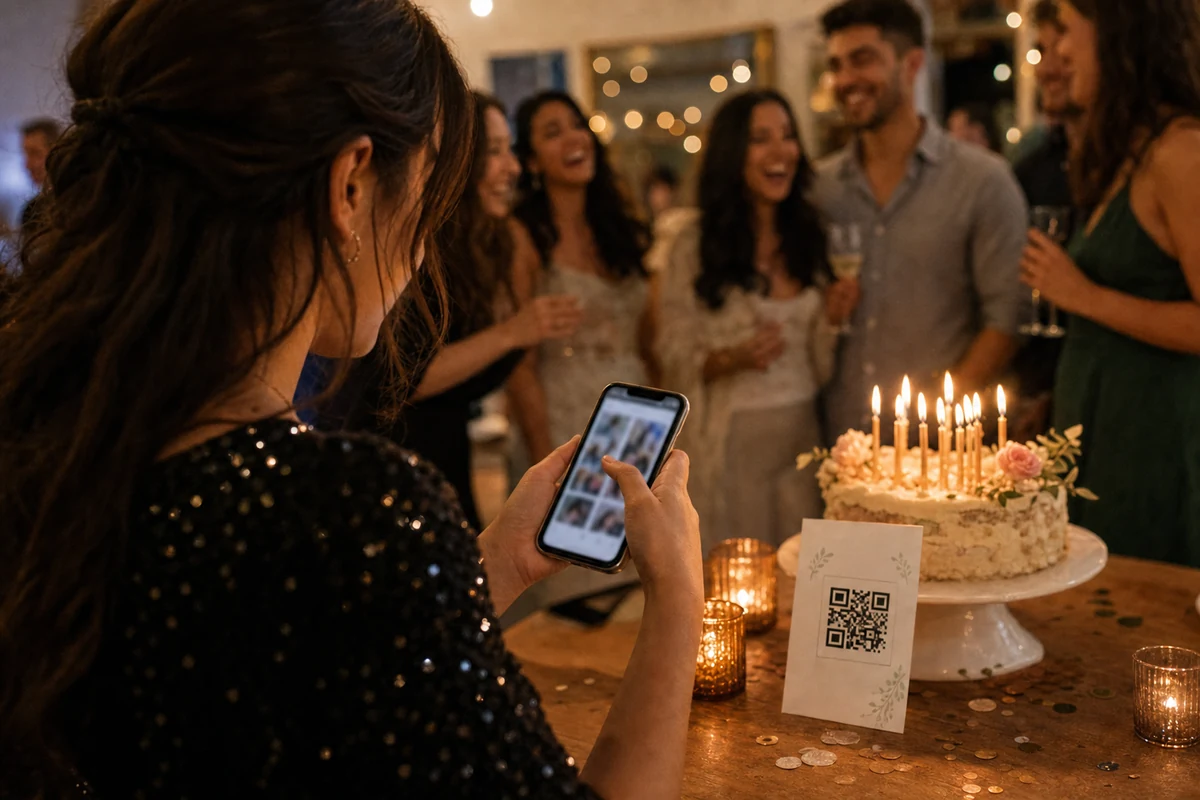
Collecting a good photograph takes more than sending a file. Choose a clear shot, use the photo from the photographer’s own phone and check the final upload status so your event ends with an album you can actually keep.
Is the problem in the shot or the selected file?
Open the photograph in your phone’s Photos or Gallery app first. If faces are already blurred there, a different upload method cannot add missing detail. A marked lens, movement, a dark room or missed focus may affect the shot. Look for a clearer frame of the same moment. Two or three good photographs usually make a more useful album than every repeated attempt.
If the source looks clear but a small gallery tile looks soft, you are comparing different views. A thumbnail is not a full-size assessment of the source file. Work out which stage is causing the concern before sending the same photograph repeatedly; repeated uploads can leave the host with several copies of one moment.
Prepare the shot without interrupting the celebration
Before an important photograph, wipe the lens with a suitable clean cloth, hold the phone steadily and look for a better-lit position. Move closer if there is a safe place to stand rather than relying on extreme zoom. Leave room for the photographer and other guests. A slightly better angle is not a reason to block a ceremony or stop a speech.
On iPhone you can tap the person you want to focus on and adjust brightness. Similar controls on Android vary by model. Take one practice frame and enlarge it before the moment begins. This is easier than discovering an entire set is blurred later. Photograph short, natural interactions rather than repeatedly calling people away from the event to pose.
Choose the photograph, not a screenshot of it
Opening a photograph elsewhere and taking a screenshot does not share its source file. The screen’s displayed detail, cropping and surrounding interface may become part of the new image. When possible, ask the person who took the photograph to select it from their own camera roll. Finding that source is more useful than sending copies of copies around the guest list.
For example, if a friend sends you a photograph of the first dance, do not upload a screenshot of the conversation. Your friend can add the photograph directly from their phone to the event album. If you prefer an edited version, use that actual file. You do not have to undo every edit; simply decide which version you want to keep before sharing it.
Give cloud photos time to become available
When a photo library syncs with a cloud service, seeing a small image on the phone does not necessarily mean the full file is ready locally. Open the photograph and give the connection time to load it, then select it in the event’s file picker. Accessing a large set of older photos or long videos may take longer than selecting recently captured images.
Prepare only the files you need; there is no reason to download your entire library just to contribute to one event. Apple’s iCloud copying guide explains ways to obtain photo and video copies on different devices. Android gallery and cloud services may use different download options. Renaming a file extension does not repair an unreadable file or change its actual format.
Check the event and the selection before sending
After scanning a QR code or opening an invitation, check the album name and date when present. Engagement parties, henna celebrations and weddings can fall close together, making the wrong album easy to select. Review the selected thumbnails for duplicates, unrelated screenshots and personal photographs you did not intend to share. This is the easiest point to correct your selection.
In EVENTY, invited guests can contribute through the event’s permitted web flow, while the organizer manages the album in the mobile app. Contributing photos and managing an album are different tasks. If a friend helps you upload, review your phone’s selection together. You do not need to share the organizer’s account or invitations for unrelated private albums.
Use smaller batches on a weak connection
A crowded venue connection can make a selection of hundreds of files difficult to manage. Start with a few photographs, check their outcomes and continue with the next batch. Videos may be much larger than still photos; choose a quieter moment with a stable connection for those files. If you switch to mobile data, consider your own data allowance.
Follow the state shown for a pending or failed file. Retry the failed item rather than resending everything that already completed. If the invitation is no longer open for uploads, compressing the file will not solve that problem. Ask the organizer to check the contribution window. When asking for support, describe the event and the visible problem without placing private photographs on a public page.
Read the final result, not just the progress bar
Selected, transferring, received and visible in the album are different states. Reaching 100 percent does not tell the whole story; read the result shown for the file. EVENTY may show a photo as pending when organizer review is required. That does not mean the photograph was lost, and it is not by itself a reason to submit the same file again.
A practical rehearsal is to add two photographs, read both results and open the ready images in the gallery when viewing is allowed. If review is pending, check with the organizer. Try this on your own phone before the event so you can help guests confidently. Show them where to recognize a completed upload rather than giving a long explanation of how transfers work.
Keep the download, not the gallery thumbnail
A gallery can use previews to display photographs quickly. Do not build your archive from screenshots of the album or saved small tiles; use the permitted download or export path. In EVENTY, viewing and downloading original files can have separate permissions. Being able to see an image as a guest does not automatically mean you can download that file.
As organizer, open a few downloaded photographs, check their orientation and detail, then store the archive in your own backup. Picture quality and embedded information such as capture location are different things; some information may be removed for privacy. Complete your checks before the album’s retention period ends. Keep the source photos on your phone until you have confirmed the copies you need.
Plan your event photo downloads and retention

Sources
FAQ
Should I upload again if the small gallery photo looks blurred?
Check the source on your phone and open the album image first. A small preview is different from the source file. Uploading a completed file again can create an unnecessary duplicate.
Can I close the page immediately after choosing photos?
Selection does not mean the upload has finished. Read each file’s final state. Follow the on-screen guidance for pending or failed items and avoid resending files that have already completed.
Can iPhone and Android guests contribute to the same album?
Yes. EVENTY has iOS and Android apps, and guests can also use the invitation’s browser flow when the event allows it. Use the same event invitation on either device.
Are location metadata and image quality the same thing?
No. Information such as capture location is separate from the visual detail in a photograph. A service may remove that information for privacy. File size alone is not a reliable way to judge picture quality.
Bring your guests’ photographs into one private album
Explore EVENTY’s invitation and contribution flow, then try a small upload on your own phone before the event.