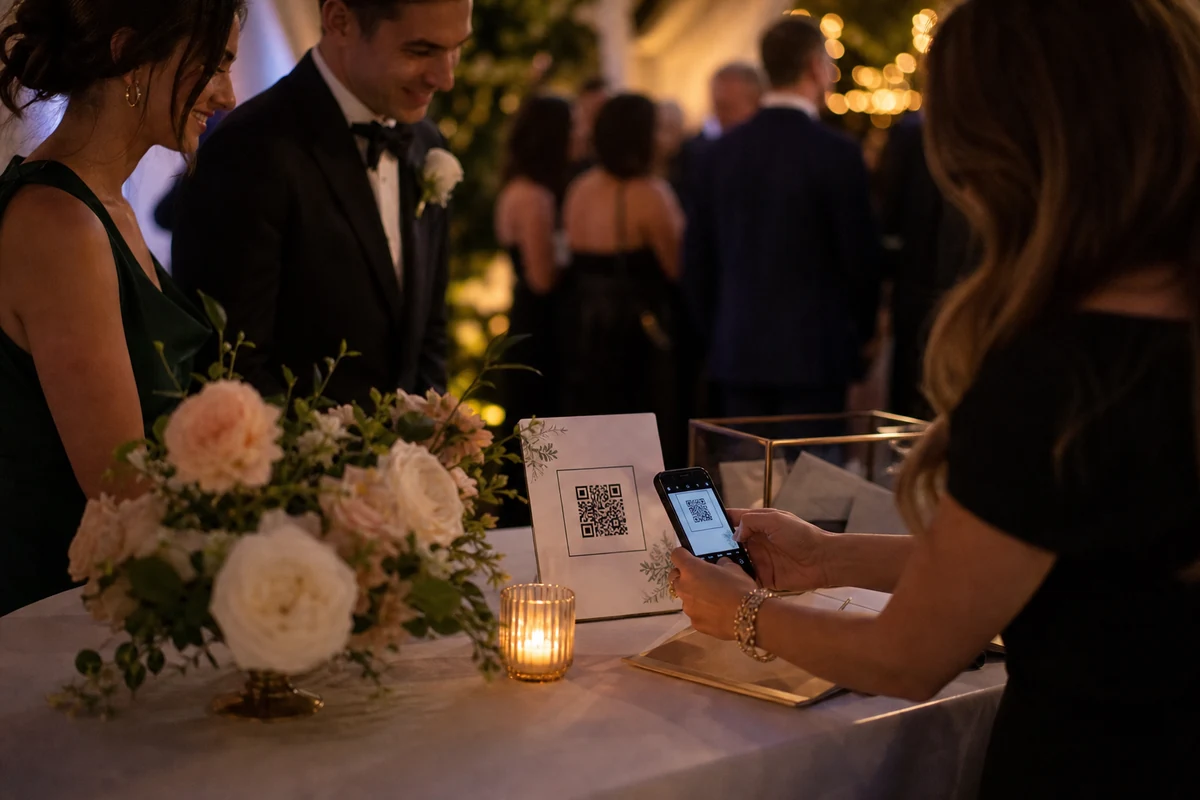
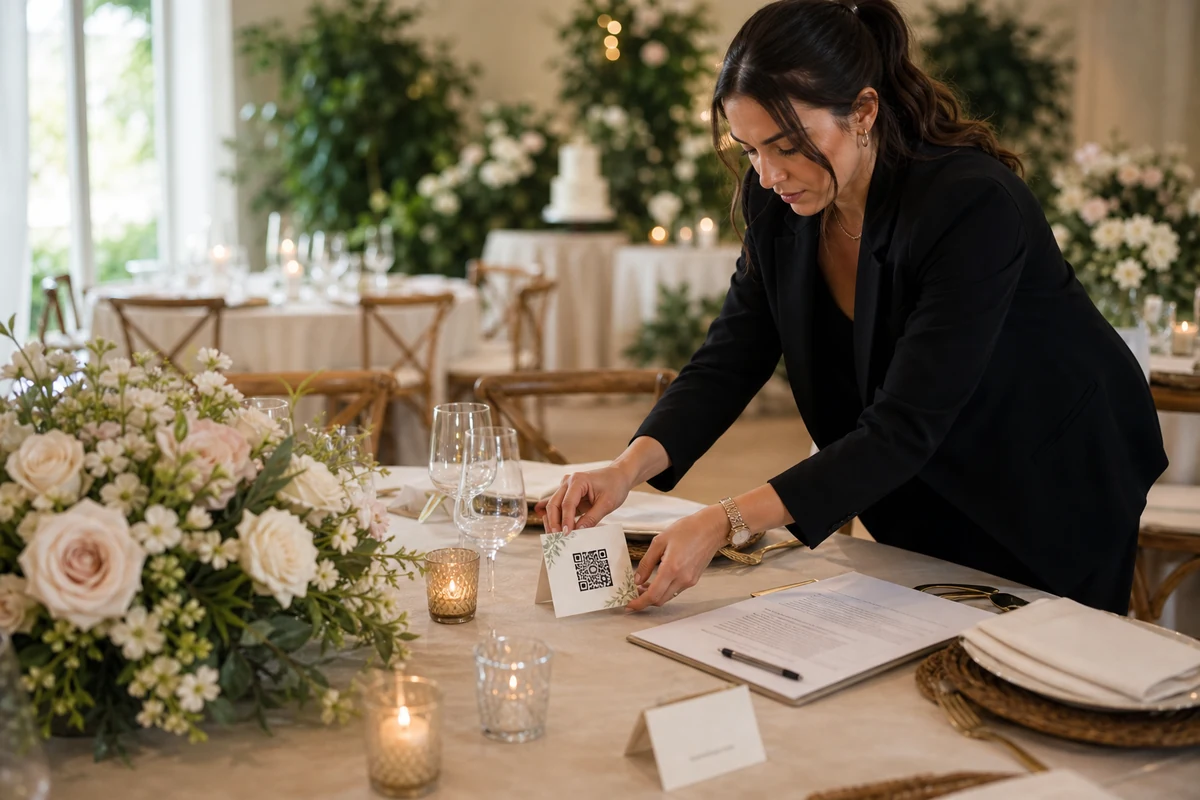
The best QR materials explain the private album in seconds: scan the code, open the event, upload photos, and download later.
Make the QR code part of the event setup
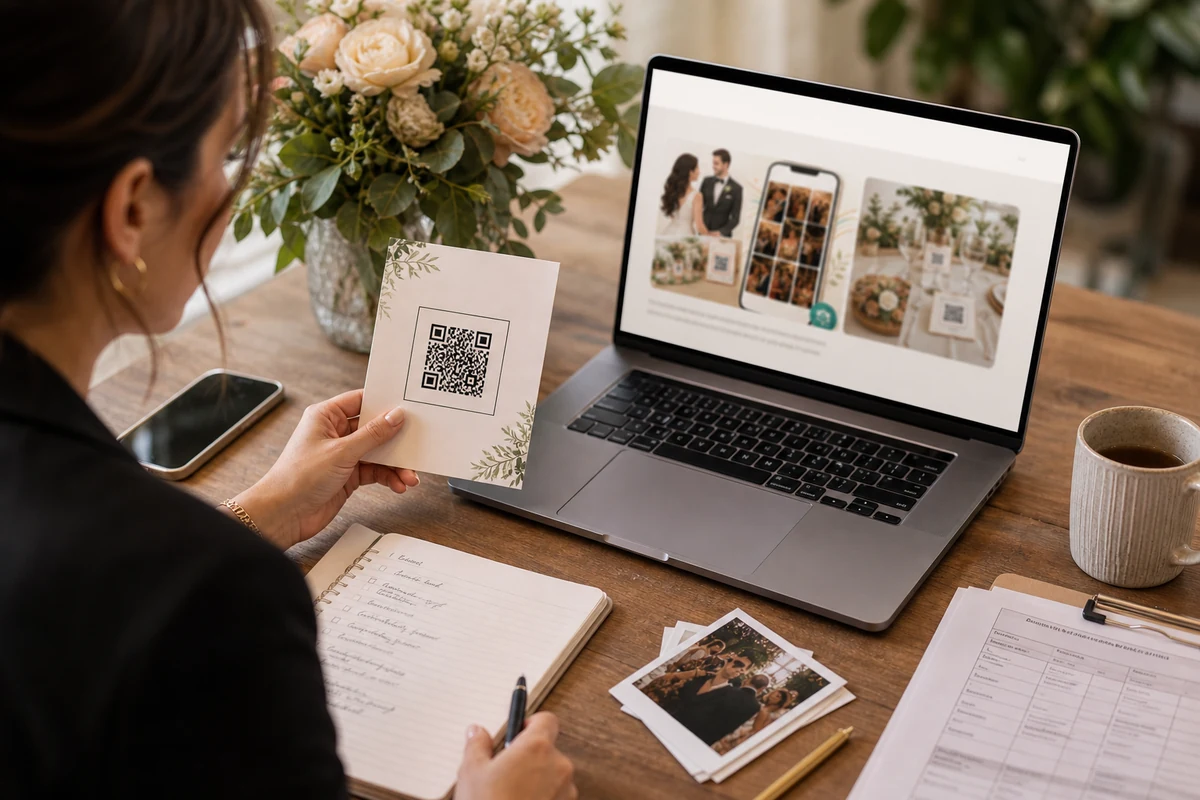
QR materials should feel intentional, not like a last-minute technical printout. Use the event name, a short instruction, and enough visual space for the code to be scanned quickly.
Guests should understand the promise before tapping: this opens the private album for this event.
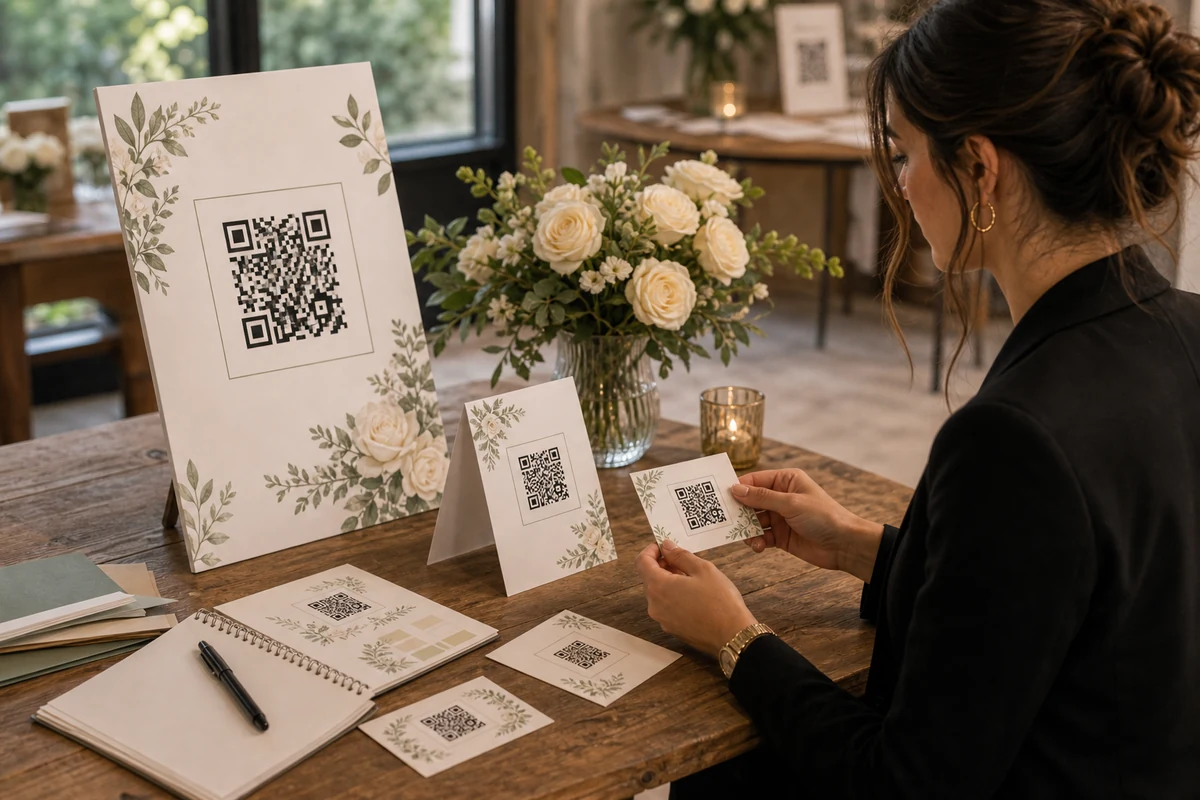
Use multiple small prompts
One large poster near the entrance is easy to miss. Table cards, bar cards, welcome desk signs, and photo-area prompts catch guests at the moments they already have photos to share.
Short repetition is better than a long explanation.
Give hosts export-ready materials
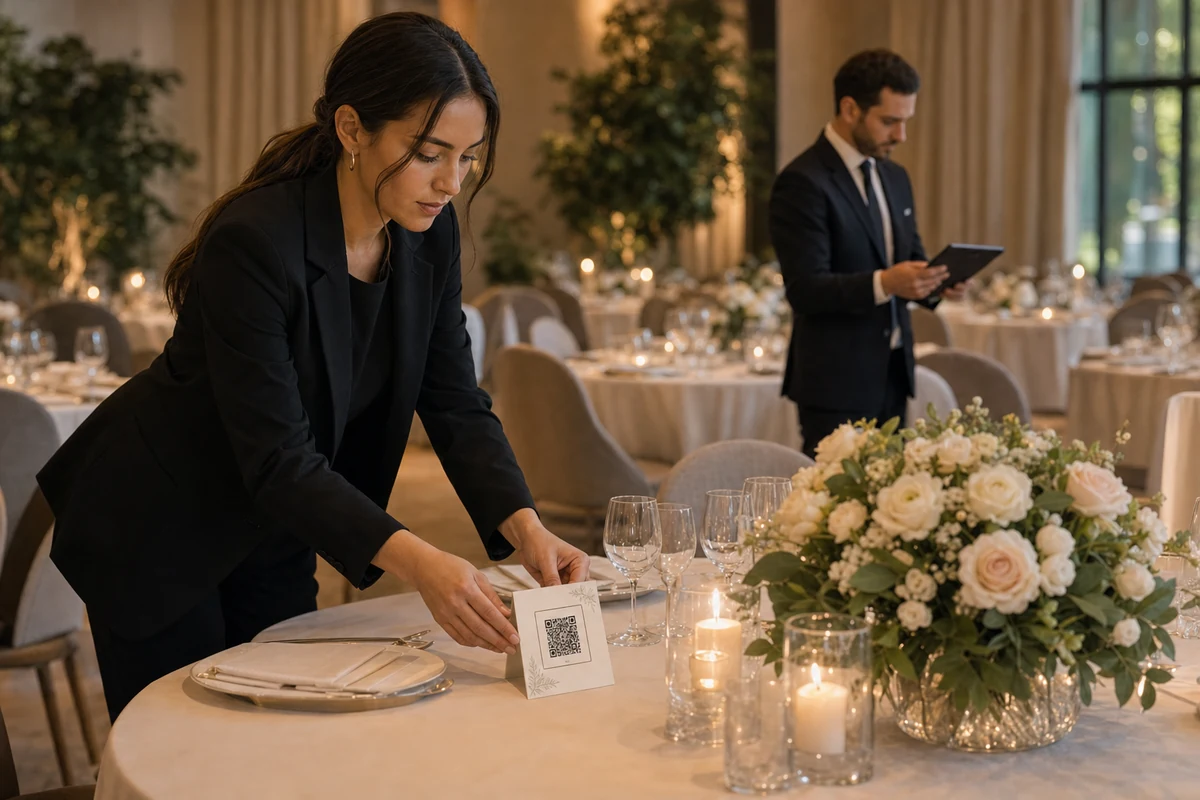
Hosts should be able to save a PDF, a PNG, or a QR-only asset depending on how they plan to print or customize the design. Some will use the built-in poster; others will place the QR in Canva, Photoshop, or venue stationery.
The product should support both paths without making the host recreate the album link manually.
FAQ
What should a QR poster say?
Use a short three-step message: scan the QR, open the private album, upload your photos. Add download context only if space allows.
Should the QR code be styled?
It can be framed, but scan reliability matters more than decoration. Keep contrast high and leave enough quiet space around the code.